Quick Start
RaspAP gives you two different ways to get up and running quickly. The simplest approach is to use our custom OS image with RaspAP preinstalled via the Raspberry Pi Imager (preferred method). This option eliminates guesswork, lets you customize settings before flashing, and gives you a base upon which to build. An alternative method is to execute the Quick installer on an existing compatible OS.
Custom OS
Raspberry Pi Imager
The easiest way to install RaspAP is by using the official Raspberry Pi Imager. This method lets you select RaspAP directly from the "Other specific-purpose OS" category. You can also customize settings (hostname, username, password and SSH access) before flashing directly to your microSD card in one step.
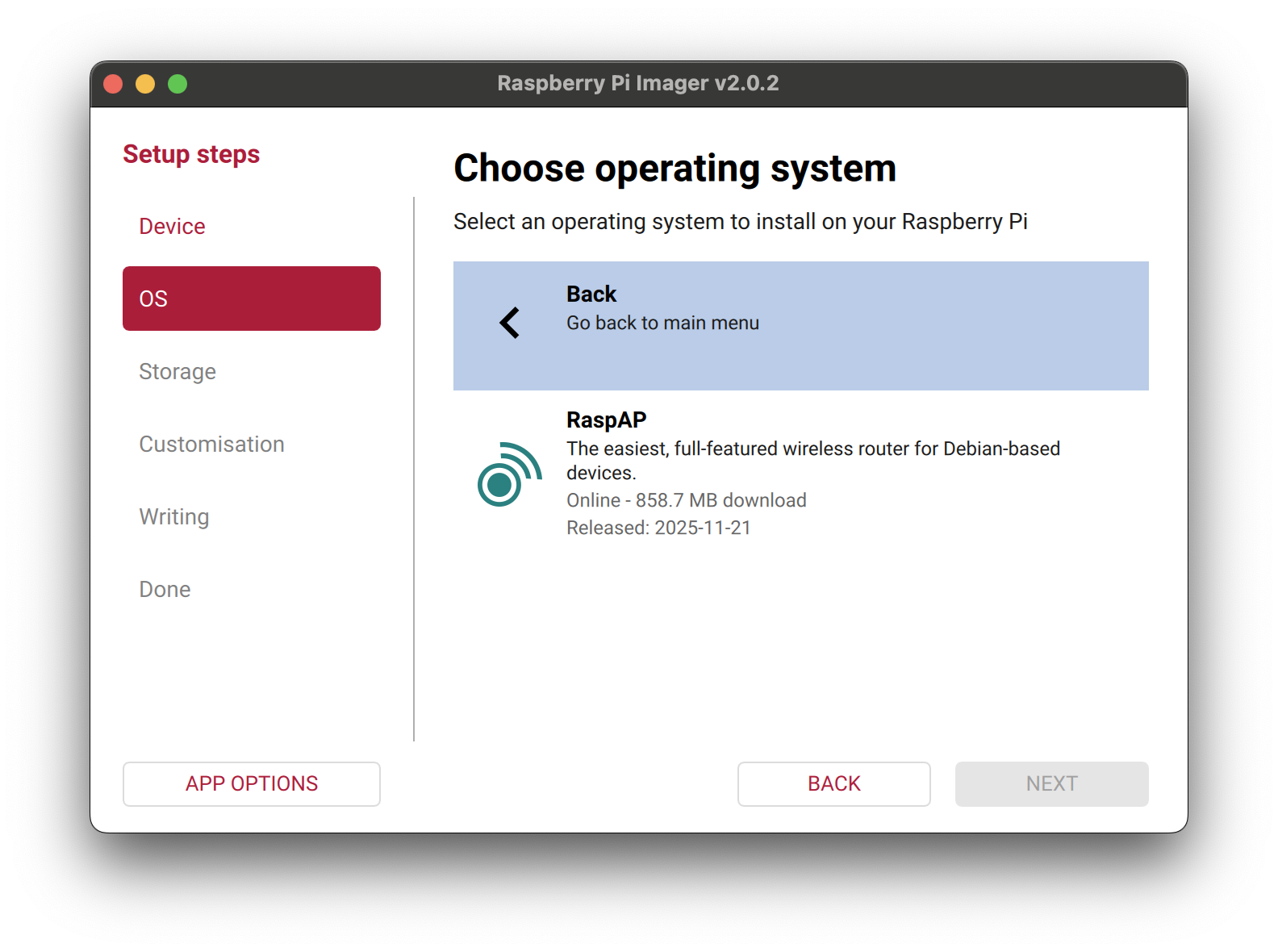
Simply download and launch Raspberry Pi Imager, choose OS → Other specific-purpose OS → RaspAP, select your preferred architecture (64-bit or 32-bit), and follow the prompts to configure and flash your card.
Direct download
Custom Raspberry Pi OS Lite images with the latest RaspAP are also available for direct download. This includes both arm64 (64-bit) or armhf (32-bit) based builds for ARM architectures.
Tip
Experiencing download timeouts? We provide torrent files that resolve GitHub's token timeout issues while still downloading from GitHub's servers. Visit our latest release page to download a torrent file for your desired architecture.
| Distribution | Debian version | Kernel version | RaspAP version | Size |
|---|---|---|---|---|
| Raspberry Pi OS (64-bit) Lite | 13 (trixie) | 6.12 | Latest | 885 MB |
| Raspberry Pi OS (32-bit) Lite | 13 (trixie) | 6.12 | Latest | 858 MB |
After downloading your desired image, use the v1.9.6 release of Raspberry Pi Imager or later to flash the OS image onto a microSD card. The Pi Imager is recommended because it lets you modify optional configuration settings, such as setting a username and password, and enabling access via SSH. Insert the card into your device and boot it up. The latest RaspAP release with the most popular components will be active and ready for you to configure. Please review the Initial settings for details on how to connect.
Quick installer
As an alternative to a custom OS, RaspAP can be added to an existing system using the Quick installer. Begin with a clean install of the latest release of a supported Linux distribution. In the example below, Raspberry Pi OS (64-bit) Lite is used.
Update your OS to its latest version, including the kernel and firmware, followed by a reboot:
Set the WiFi country inraspi-config's Localisation Options:
Invoke RaspAP's Quick Installer:
The Quick installer will complete the steps in the manual installation for you. At the end of the install process, accept the prompt to reboot your system.
Initial settings
After completing either of these setup options, the wireless AP network will be configured as follows:
- IP address: 10.3.141.1
- Username: admin
- Password: secret
- DHCP range: 10.3.141.50 — 10.3.141.254
- SSID: RaspAP
- Password: ChangeMe
It is strongly recommended that you change these default credentials in RaspAP's Authentication and Hotspot > Security panels.
Your AP's basic settings and many advanced options may now be modified by RaspAP.
Supported distributions
RaspAP was originally made for Raspberry Pi OS, but now also installs on the following Debian-based distros:
| Distribution | Release | Architecture | Support |
|---|---|---|---|
| Raspberry Pi OS Lite | 64-bit Debian 13 (trixie) | ARM | Official |
| Raspberry Pi OS Lite | 32-bit Debian 13 (trixie) | ARM | Official |
| Raspberry Pi OS Lite | 64-bit Debian 12 (bookworm) | ARM | Official |
| Raspberry Pi OS Lite | 32-bit Debian 12 (bookworm) | ARM | Official |
| Raspberry Pi OS Desktop | 64-bit Debian 12 (bookworm) | ARM | Official |
| Raspberry Pi OS Lite | 64-bit Debian 11 (bullseye) | ARM | Official |
| Raspberry Pi OS Lite | 32-bit Debian 11 (bullseye) | ARM | Official |
| Kali Linux | 2025.3 | ARM 64-bit | Beta |
| Kali Linux | 2025.3 | ARM 32-bit | Beta |
| Armbian | 23.11 (jammy) | ARM | Beta |
| Debian 13 | trixie | ARM | Beta |
| Debian 12 | bookworm | ARM | Beta |

You are also encouraged to try RaspAP's community-led Docker container.
Documentation and more
Our frequently asked questions (FAQ) are continuously updated and are a great place to start. Need help not covered in the FAQ, have an idea, or want to share your project with the RaspAP community? Head over to our GitHub Discussions. For everything else and more detailed information, dive into our official documentation.